
Online Laptop Screen Tester
Choose a quick test
Tap a card to jump straight into that set of tests.
Choose the test(s) you would like to perform
Tap a test to select it, or the info icon to see what it checks.
Exit this test?
Your progress on remaining tests will be lost. Completed results so far won't be saved.
Your results
Here's how your display performed across the tests you ran.
Before you start
- 1 Clean your screen so smudges aren't mistaken for dead pixels or clouding.
- 2 Dim the room for backlight bleed, light leakage, and black-level tests — these show up best in the dark.
- 3 Use normal room lighting for color, brightness, and uniformity tests.
- 4 For touch tests, use a finger or stylus and try to cover the entire screen, including edges and corners.
- 5 Fullscreen mode gives the most accurate results — allow it if your browser prompts you.
- 6 Motion and refresh-rate readings are approximate, browser-measured estimates — not exact hardware specs.
Check your laptop screen before it costs you money
A bad laptop display doesn’t always announce itself. Dead pixels can hide behind a busy desktop background, backlight bleed only shows up in a dark room, and burn-in stays invisible until you load a plain gray screen. Running this test takes under a minute and can save you from buying a damaged used laptop, missing a repair defect, or selling your own machine without knowing what’s actually wrong with the panel
Related Tools
Phone screen test
Want to catch display problems before they get worse? This browser-based diagnostic sweeps through pure color screens and a touch-tracing grid to reveal dead pixels, blotchy backlighting, and dead touch spots. No installs, no signup, just open it on any phone and get results in seconds.
Samsung screen test
Test your Samsung screen for dead pixels, display colors, brightness, and touch response. Use this online Samsung Screen Test to quickly check your display and identify common screen issues.
Iphone screen test
iPhone Screen Test lets you check your display for dead pixels, backlight bleed, touch response, and color accuracy right in your browser. Just run through the color and touch tests to spot any hardware issues before your warranty runs out.
Oppo screen test
Struggling with display glitches on your Oppo phone? Run this free diagnostic to spot dead pixels, uneven backlighting, and unresponsive touch zones in seconds. It cycles through solid colors and a touch grid so you can catch panel defects early, no app download needed.
Android screen test
Worried your Android device has a faulty screen? This online tool runs full-screen color sweeps and a multi-touch grid to reveal dead pixels, screen burn, and dead touch spots instantly. Works on any Android phone or tablet straight from your mobile browser, no installation required.
Apple screen test
Got an Apple device with a suspicious display flaw? This browser-based checker sweeps through pure color screens and a responsiveness grid to expose dead pixels, uneven brightness, and ghost touches. Compatible with iPhone, iPad, and Mac displays, with zero downloads needed.
One Plus screen test
Spotting weird marks or lag on your OnePlus display? This free checker walks through vivid color panels and a tap-response grid to flag stuck pixels, patchy backlighting, and unresponsive spots. Runs instantly in your phone's browser, so you can verify screen health before selling or trading in.
Vivo screen test
Not sure if your Vivo phone's display is fully healthy? This quick web-based scan cycles through bold colors and a finger-tracking grid to catch dead spots, blotchy backlight, and dull touch response. No installs required, just open it and check straight from your browser.
Huawei screen Test
Second-hand Huawei device on the way, or just checking your current one? This no-install web tool flashes through solid hues and a tap-tracing grid to uncover pixel faults, patchy panel lighting, and lagging touch zones. Get a clear read on your display's condition in under a minute, right from your browser.
Goggle Pixel screen test
Curious if your Google Pixel's display is holding up? This browser-based tool runs solid color cycles and a touch-tracking grid to catch dead pixels, screen bleed, and unresponsive spots. No app needed, just open it up and check your Pixel's screen health in under a minute.
Redmi screen test
Picked up a new or used Redmi phone and want to be sure the screen's solid? This free web tool sweeps through bright color fields and a touch-response grid to reveal dead pixels, backlight patches, and dead zones. No downloads needed, just run it straight from your browser for a quick health check.
Tablet screen test
Not sure your tablet's display is in top shape? This free web tool cycles through solid colors and a touch-tracking grid to catch dead pixels, uneven backlighting, and unresponsive touch areas. Works on iPad, Android, and Windows tablets alike, no installation required, just open your browser and run the check.
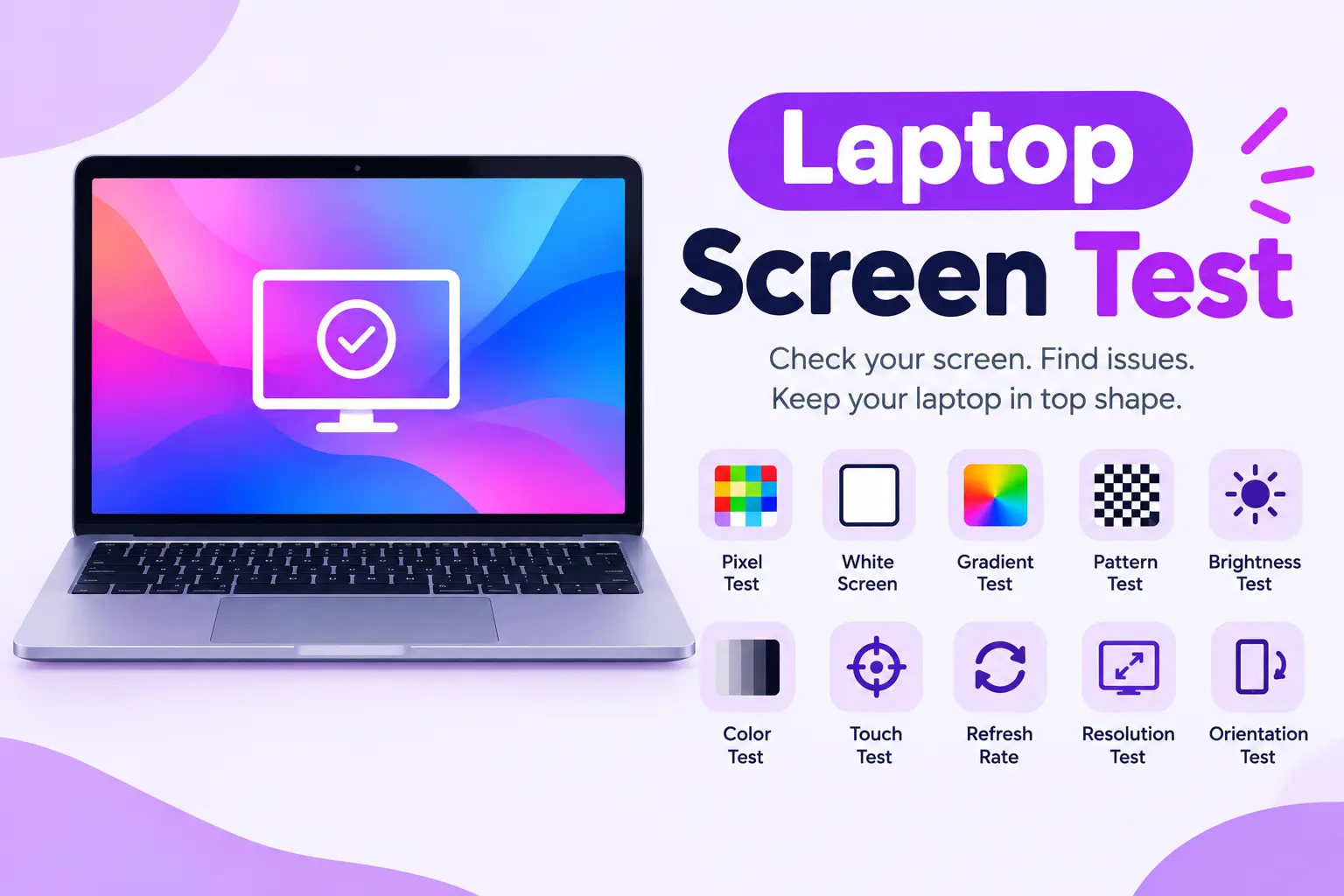
Laptop Screen Test
This free laptop screen test helps you check for dead pixels, backlight bleed, color banding, and touch issues on Windows and everyday laptops. Run it in your browser with no software install.
This page uses easy wording so anyone can follow along. You do not need special skills. Look at the screen, tap where needed, and note what looks wrong on your laptop.
Use this check when buying a used laptop, after travel, or before returning a new device. Screen faults are easier to prove with a clear browser test than with a desktop wallpaper.
What this laptop screen test helps you find
A cracked glass is easy to see. Many costly display faults are not. These simple checks make dead pixels, touch faults, tint, and burn-in easier to notice.
Dead pixel scan
Full red, green, blue, black, and white screens make bad pixels easy to see.
Backlight bleed
Black screens reveal bright corners and cloudy glow on IPS panels.
Color uniformity
Look for tint shifts from one side of the screen to the other.
Gradient banding
Smooth color fades should not look striped or blotchy.
Touchscreen mapping
On 2-in-1 laptops, check taps and swipes across the full panel.
After hinge stress
Retest if the lid was bent, dropped, or pressed hard in a bag.
How to use this laptop screen check
- Clean the display. Dust and fingerprints are often mistaken for dead pixels.
- Use a darker room for black tests. Backlight bleed and burn-in show up better in low light.
- Use normal light for color tests. Bright windows can hide tint problems.
- Cover every edge in the touch test. Corners and camera cutouts fail first after drops or repairs.
- Write down what you see. Note dead pixels, dead zones, tint, glow, or image shadows.
Common laptop screen problems
People search for a laptop screen test, dead pixel checker, touch screen test, and OLED burn-in test for the same reason: a bad display can ruin an otherwise good device.
Bright corner glow
Common on IPS laptops and worse in a dark room.
Stuck pixel
A tiny always-lit color dot that stays in one place.
Pressure spots
Cloudy marks from bag pressure or lid force.
Uneven whites
One side looks warmer or cooler than the other.
When you should run a laptop screen test
Before buying used
Sellers can hide faults with bright wallpapers. Solid color screens make defects obvious.
After a drop
Touch can fail even when the glass still looks fine.
After screen repair
Confirm the new panel has no dead pixels or dead touch zones.
Before selling
Know the real condition of the display before a trade-in.
For warranty proof
Clear notes and screenshots help explain what is wrong.
When colors look odd
Tint, banding, and burn-in are easier to judge on test screens.
This tool is useful for
Dead pixel checker
Full-screen colors for black spots and stuck pixels.
Touch screen tester
Tap and swipe mapping for dead zones.
OLED burn-in test
Gray screens to reveal image retention.
Color and gradient test
Find tint, banding, and weak saturation.
Brightness uniformity test
Check backlight bleed and cloudy blacks.
iPhone screen guide
Extra tips for iPhone display checks.
Android screen guide
Extra tips for Android display checks.
Laptop screen guide
Extra tips for laptop panel checks.
Phone Screen Test
Main free display and touch diagnostic tool.
About
Learn more about Phone Screen Test.
Contact
Ask a question or send feedback.
Blog
Guides and tips for device testing.
How to find dead pixels
Guide placeholder for a dead pixel article.
OLED vs LCD problems
Guide placeholder comparing burn-in and bleed.
Ghost touch fixes
Guide placeholder for digitizer troubleshooting.
Used device screen checklist
Guide placeholder for buying checks.
When to replace a screen
Guide placeholder for repair decisions.
Screen test FAQ
Guide placeholder for common questions.
Display care tips
Guide placeholder for cleaning and protection.
Warranty photo tips
Guide placeholder for documenting defects.
Laptop Screen Test FAQ
Is this laptop screen test free?
Yes. You can use this page for free in your browser. No account is needed for a basic display and touch check.
Do I need to install an app?
No. Keep it simple and use your browser. That makes testing fast on almost any laptop.
Can I find dead pixels with this page?
Yes. Solid color screens are one of the easiest ways to spot dead pixels, stuck pixels, and hot sub-pixels.
Does this work for OLED and LCD?
Yes. On OLED, also watch for burn-in. On LCD, watch for backlight bleed and cloudy blacks.
Is this a professional hardware report?
No. It is a practical visual and touch inspection. For final repair decisions, a technician may still need to inspect the device.
Start your laptop display check
If your screen test tool is placed above this content, use it now. Choose a quick test or individual checks, then look carefully for dead pixels, touch faults, tint, and burn-in.
Start Screen Test