
Screen Resolution Checker Online
Your screen resolution
For the most accurate result, set your browser zoom to 100%. Everything is read in your browser and nothing is uploaded.
What Is Screen Resolution?
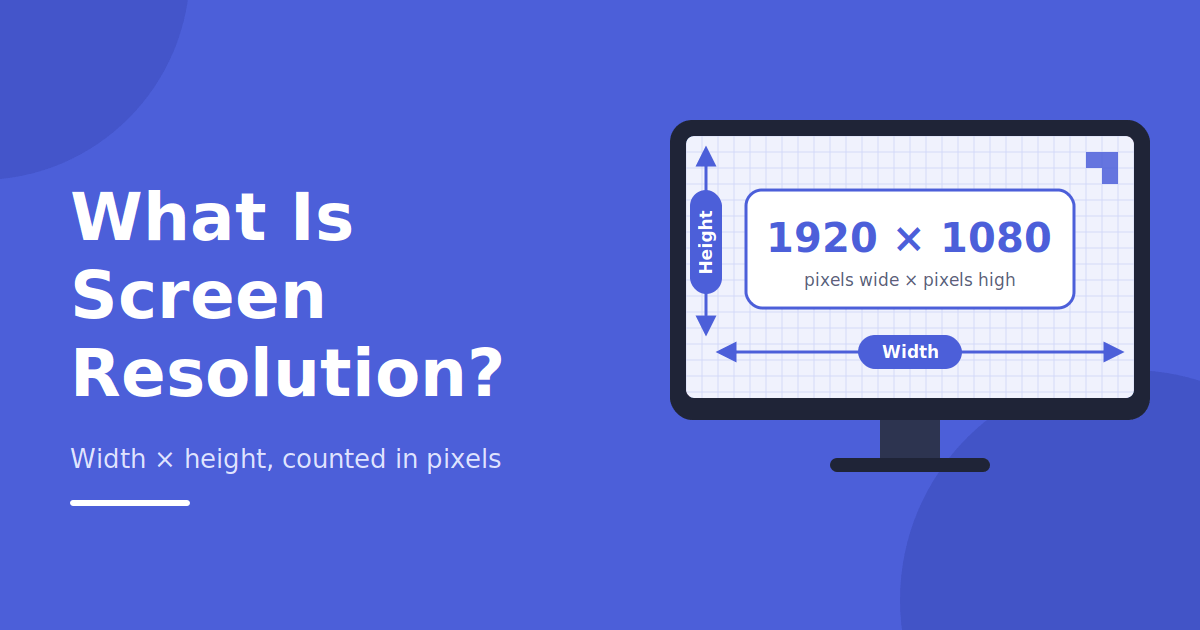
Screen resolution is the total number of pixels a display uses to draw images and text, counted across the width and then the height. A screen with 1920 × 1080 pixels has 1,920 pixels in each row and 1,080 rows. More pixels mean sharper text, finer detail and more room on the screen.
Resolution is not the same as screen size. A 6-inch phone and a 27-inch monitor can have the same resolution, but the phone looks much sharper because the pixels are packed into a smaller area. That density is called PPI (pixels per inch).
Related Tools
Samsung screen test
Test your Samsung screen for dead pixels, display colors, brightness, and touch response. Use this online Samsung Screen Test to quickly check your display and identify common screen issues.
Iphone screen test
iPhone Screen Test lets you check your display for dead pixels, backlight bleed, touch response, and color accuracy right in your browser. Just run through the color and touch tests to spot any hardware issues before your warranty runs out.
Oppo screen test
Struggling with display glitches on your Oppo phone? Run this free diagnostic to spot dead pixels, uneven backlighting, and unresponsive touch zones in seconds. It cycles through solid colors and a touch grid so you can catch panel defects early, no app download needed.
Android screen test
Worried your Android device has a faulty screen? This online tool runs full-screen color sweeps and a multi-touch grid to reveal dead pixels, screen burn, and dead touch spots instantly. Works on any Android phone or tablet straight from your mobile browser, no installation required.
Apple screen test
Got an Apple device with a suspicious display flaw? This browser-based checker sweeps through pure color screens and a responsiveness grid to expose dead pixels, uneven brightness, and ghost touches. Compatible with iPhone, iPad, and Mac displays, with zero downloads needed.
One Plus screen test
Spotting weird marks or lag on your OnePlus display? This free checker walks through vivid color panels and a tap-response grid to flag stuck pixels, patchy backlighting, and unresponsive spots. Runs instantly in your phone's browser, so you can verify screen health before selling or trading in.
Vivo screen test
Not sure if your Vivo phone's display is fully healthy? This quick web-based scan cycles through bold colors and a finger-tracking grid to catch dead spots, blotchy backlight, and dull touch response. No installs required, just open it and check straight from your browser.
Huawei screen Test
Second-hand Huawei device on the way, or just checking your current one? This no-install web tool flashes through solid hues and a tap-tracing grid to uncover pixel faults, patchy panel lighting, and lagging touch zones. Get a clear read on your display's condition in under a minute, right from your browser.
Goggle Pixel screen test
Curious if your Google Pixel's display is holding up? This browser-based tool runs solid color cycles and a touch-tracking grid to catch dead pixels, screen bleed, and unresponsive spots. No app needed, just open it up and check your Pixel's screen health in under a minute.
Redmi screen test
Picked up a new or used Redmi phone and want to be sure the screen's solid? This free web tool sweeps through bright color fields and a touch-response grid to reveal dead pixels, backlight patches, and dead zones. No downloads needed, just run it straight from your browser for a quick health check.
Laptop screen test
Wondering if your laptop's display has hidden flaws? This browser-based utility runs full-screen color sweeps to expose dead pixels, backlight bleed, and dull spots that are easy to miss under normal use. Works on any Windows or Mac laptop, just open it in your browser for an instant screen health check.
Tablet screen test
Not sure your tablet's display is in top shape? This free web tool cycles through solid colors and a touch-tracking grid to catch dead pixels, uneven backlighting, and unresponsive touch areas. Works on iPad, Android, and Windows tablets alike, no installation required, just open your browser and run the check.
How to Use Our Screen Resolution Checker
- Open this page on the device you want to test.
- Wait a second while the tool reads your display.
- See your screen width, height and other details on the screen.
- Resize your browser window or rotate your phone to see the numbers update.
The tool reads values directly from your browser, so the result matches what websites really see on your device.
What Details Does This Tool Show?
Screen resolution
The full size of your display in pixels.
Browser viewport
The visible area inside your browser window. It changes when you resize it.
Device pixel ratio
How many real pixels are used for one CSS pixel. A ratio of 2 or 3 is common on phones and Retina screens.
Orientation
Portrait or landscape.
Color depth
How many colors your screen can show.
Screen Resolution vs. Viewport Size
People often mix these two up. Screen resolution is the size of the whole display. Viewport size is only the part of the screen your browser uses to show a web page. If your screen is 1920 × 1080 but your browser window is smaller, your viewport will be smaller too.
Web designers care most about viewport size, because it decides how a website layout looks. Gamers, video editors and monitor buyers care more about the full screen resolution.
Common Screen Resolutions
| Name | Resolution | Typical use |
|---|---|---|
| HD (720p) | 1280 × 720 | Small laptops, older screens |
| Laptop HD | 1366 × 768 | Budget laptops |
| Full HD (1080p) | 1920 × 1080 | Most monitors and laptops |
| QHD (1440p) | 2560 × 1440 | Gaming and design monitors |
| 4K UHD | 3840 × 2160 | High-end monitors and TVs |
Phones come in many sizes. Most of them show websites a smaller "CSS" size because of their high pixel ratio. That is why our tool also shows the device pixel ratio.
How to Check Screen Resolution Manually
Windows 10 and 11
Go to Settings → System → Display. Under "Display resolution" you will see your current setting. The one marked "Recommended" is your native resolution.
Mac
Click the Apple menu → System Settings → Displays. Your resolution is shown for the built-in or external display.
Android
Most Android phones do not show resolution in settings. Some list it under Settings → About phone, but many don't. The easiest way is to open this checker in Chrome.
iPhone and iPad
Apple does not show resolution anywhere in settings. Open this page in Safari to see the values your device reports.
Why Knowing Your Screen Resolution Matters
- Buying a monitor or laptop: check that what you own or want fits your needs.
- Gaming: set the right in-game resolution for better visuals and smoother frame rates.
- Web design and testing: see how your website looks on different devices.
- Wallpapers and images: download pictures that match your screen, with no blur or stretching.
- Screenshots and video: know the exact size of what you capture.
- Troubleshooting: blurry text or stretched icons often mean the resolution is set wrong.
What Is Native Resolution?
Every screen has one native resolution. It is the number of real pixels the screen has. If you run your screen at a lower setting, text looks blurry because the system has to stretch the image.
Always use the recommended resolution, unless you have a clear reason to lower it, like better game performance.
Understanding Aspect Ratio
Aspect ratio is the shape of your screen: the proportion between width and height. These are the most common ones:
- 16:9 monitors, TVs, laptops
- 16:10 MacBooks, work laptops
- 21:9 ultrawide monitors
- 19.5:9 and 20:9 modern phones
Our tool shows your width and height, so you can work out your ratio easily.
What Not to Do
- Do not judge sharpness by resolution alone. Screen size and PPI matter too.
- Do not set a resolution higher than your screen supports. It adds no detail and can cause display problems.
- Do not use browser window size when you want the real screen resolution. Use the screen values instead.
- Do not worry if your phone shows a smaller number than its spec sheet. Browsers report scaled CSS pixels, not real pixels.
Frequently Asked Questions
What is my screen resolution right now?
Open this page and the tool will show it automatically. It reads your current display, so the result is correct for the device you are using.
Is this tool free?
Yes. It is completely free, with no sign-up and no software to install.
Does it work on mobile phones?
Yes. It works on Android, iPhone, iPad, Windows, Mac and Linux in any modern browser.
Why is my phone's resolution different from its specifications?
Phones use a high device pixel ratio. The browser reports scaled values, while the spec sheet lists the real pixel count.
Does the tool store my data?
No. Detection happens in your browser, and nothing is uploaded or saved.
Why does the viewport size change when I resize the window?
Viewport is the visible browser area, not the whole screen. It updates when you resize the window or rotate your device.
How do I change my screen resolution?
On Windows, go to Settings → System → Display. On Mac, go to System Settings → Displays. Choose the recommended setting for the sharpest picture.